Clippets file format
Clippets uses a simple, formatted text file to store the group hierarchy of snippets. The file is read at start up and written every time you make any change to a snippet, keyword or group.
You do not need to understand this file format in order to use Clippets, but you can choose to edit the file directly rather than only from within the Clippets application. In which case, you should find the information here useful.
A Clippets file defines the following.
A title (optional)
The names of groups.
Tag names associated with groups (optional).
Keywords associated with groups (optional).
Snippets that are organised within groups.
Comment lines
Below is an example of a snippet file and the how at appears when loaded into Snippets.
# An example of a snippet file.
@title: An optional title - appears at the top of the terminal.

# Groups start at the beginning of a line. Sub-groups are separated
# by colons and tags may appear at the end inside brackets.
Main : Sub group [ classA classD ]

  # A group may define keywords, which are highlighted within its
  # set of snippets, as an aid to spotitng the snippet you want. The
  # content of a group is all indented.
  @keywords@
    lists
    second

  # Each snippet starts with @md@ or @text@. The body of the snippet
  # is all following indented text.
  @md@
    Markdown is the *most* flexible format allowing:

    - Things like ...
    - bulleted lists.

  @text@
    The second snippet.

Another top-level group
  @text@
    The third snippet.
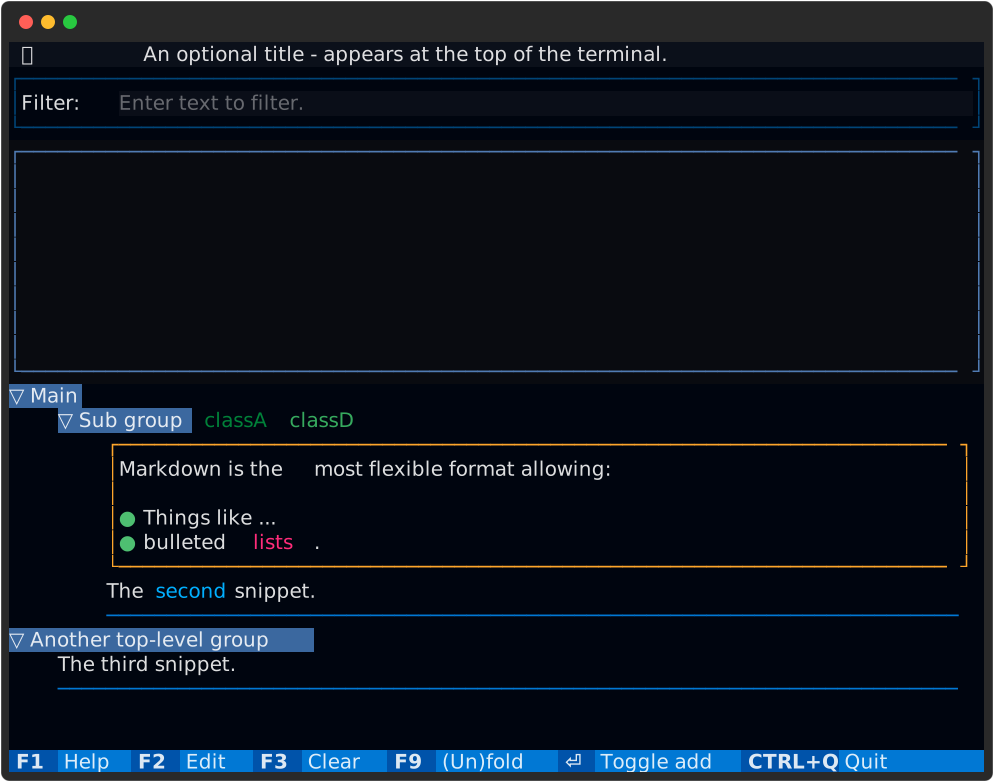
Input format details
Title
If provided, the title is displayed at the top of the terminal. It provides an easy way to see that you have started Clippets with the correct file. An example of defining the title is:
@title: My main set of snippets
The ‘@’ must be in the first column (i.e. the line must not be indented) and there must be no space between the ‘@’ and the ‘t’ of title. Spaces before and after the ‘:’ are ignored.
Group and tag names
Group names start in in the first column (i.e. the line must not be indented). Group names can contain most characters, but it recommended that you stick with letters, digits, spaces, underscores and dashes. If you follow this rule then you will not have issues with future versions of Clippets.
Some examples of simple group names are:
MyGroup
My Group
My-Group
My_Group
A colon character is used to separate parent group names from sub-group names. Any spaces around the colon are ignored.
Some examples of hierarchical group names are:
Main : Child 1 : Grandchild 1
Main : Child 2 : Grandchild 3
Main : Child 1 : Grandchild 2
Main : Child 3
The above lines create a tree of groups like this:
Main --.-- Child 1 --.-- Grandchild 1
       |             `---Grandchild 2
       |-- Child 2 ------Grandchild 3
       `-- Child 3
Tag names can optionally be added to a group by listing them inside (square) brackets. Tag names are single words; spaces are used to separate tag names. It is recommended that, as for group names you only use letters, digits, underscores and dashes for tag names. Spaces around the brackets are ignored.
Some examples of adding tags to groups are:
Main : Child 1 : Grandchild 1 [ pea ]
Main : Child 2 : Grandchild 3 [apple pear]
Main : Child 1 : Grandchild 2 [ bean pea ]
Main : Child 3
Main [apple]
Tag names are attached to the last group name on the line. The above example attaches tag names to the 3 Grandchild groups and the Main group. None of the Child groups have any tags.
Snippets
Snippets are composed of multiple lines and must be indented. Each snippet starts with a single line identifying whether the snippet is written plain or Markdown text.
Here are examples of each type of snippet, both members of a group called ‘Main’:
Main
  @text@

    A simple text snippet.

  @md@
    Markdown text that supports *italics*, **bold**, etc.

    - And things like ...
    - bullet lists.
The ‘@text@’ and ‘@md@’ are called markers and must appear as shown, with no spaces either side of the ‘text’ or ‘md’. The body of a snippet must be further indented and consists of all, suitably indented, following lines. It is recommended that the markers are indented by 2 spaces and the snippet body by 4 spaces. This indentation scheme is what Clippets uses when it writes the file.
Blank lines at the start of the snippet are included in the snippet’s contents, but trailing blank lines are not.
Keywords
A group may be given sets of keywords, which get highlighted within that groups snippets. Like tags, keywords are single words. Examples of adding keywords to a group are:
Main
  @keywords@ banana apple
  @keywords@
    pear orange
  @keywords@
    satsuma
    grape
Clippets will accept any of the above forms when reading the file. When it writes the file, it puts each keyword on a single line. Multiple sets of keywords for a group are combined into a single set and are written as a single set.
Extra text
Anything that Clippets’ file parser does not recognise is classed as extra text. Such extra text is converted to a comment, but starting with ‘#! ‘. These comments get attached to a nearby group, snippet or keyword set.
Output format
When Clippets writes a snippets file, it follows these rules:
All keywords for a group are output after a single ‘@keywords@’ marker and are lexicographically sorted.
Markers are indented by 2 spaces.
Snippet contents are indented by 4 spaces.
Comments immediately precede their associated group or marker and have the same indentation.
Clippets avoids putting trailing blank lines at the end of the file.
Comments
Comment lines may appear before a group or marker. For example:
Comments are recognised by the leading ‘#’ character. Clippets stores comments with the following group, snippet or keyword set and writes them when it saves the file. Apart from being preserved in this way, comments are ignored by Clippets.