The basics
Anatomy
Clippets’ sole purpose is to make it quick and easy to repeatedly assemble a sequences of text snippets and paste the result into a document. Below is an example of Clippets running in the terminal, annotated to show the principle components.
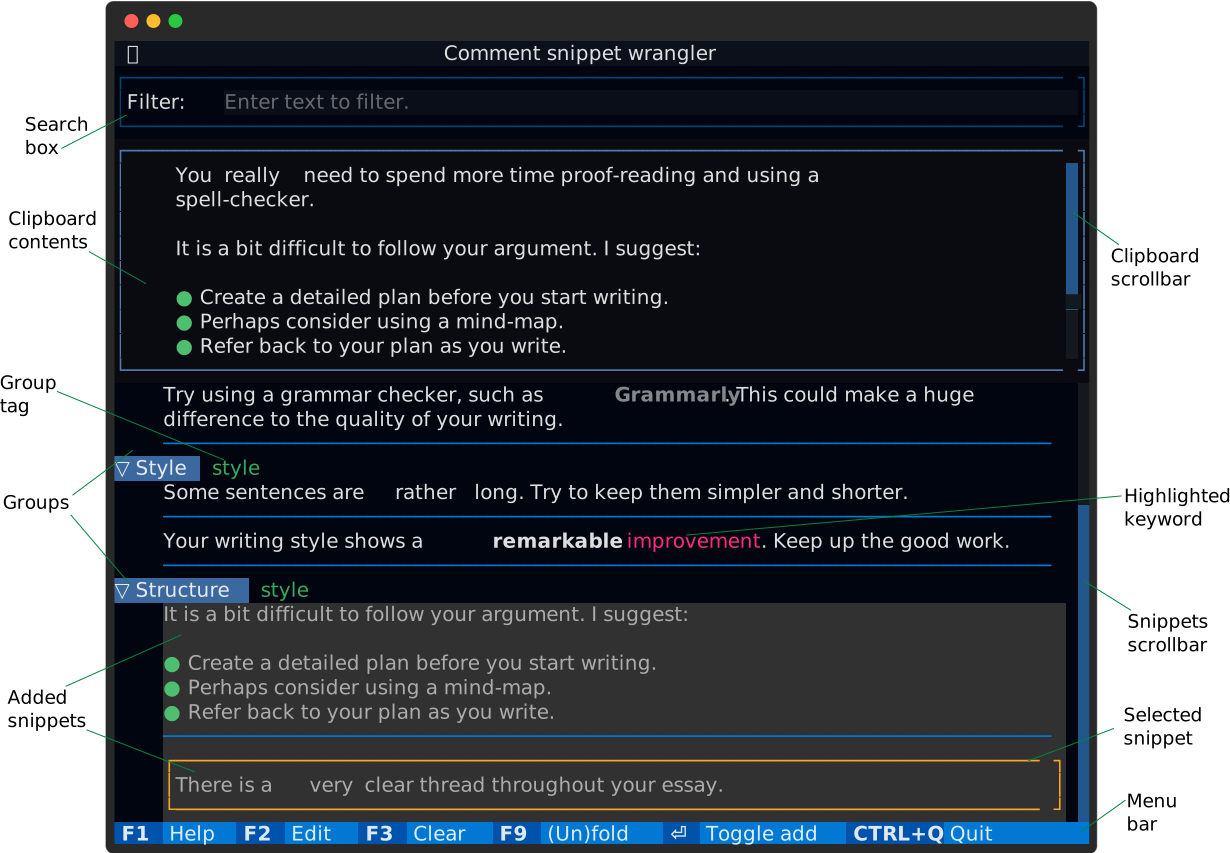
Figure 1 Principle components of the Clippets interface.
The principal components are:
- Search box
If you type an expression into this box then the snippet list is filtered to only show entries that contain the expression [1].
- Clipboard contents
This shows what is currently in your clipboard (ready to paste) unless you perform copy or cut in separate application.
This shows a reasonable facsimile of what you will see when you paste into a word processing application.
- Clipboard scrollbar
This appears as necessary. You can drag it with the mouse to view hidden parts of the clipboard contents. You can also use your mouse’s scroll wheel when the mouse pointer is over the clipboard contents.
- Groups
Snippets are collected into groups to make it easier to quickly navigate to the snippet you want. Groups may also contains other groups, forming a group hierarchy.
If you click on a group’s name it will fold (or unfold). You can also press the
F9key to quickly fold or unfold all the groups at once. See Groups and folding for how to fold groups using the keyboard.- Group tags
Each group may be followed by one or more, single word, tags. If you click on a tag then all groups with the same tag are folded or unfolded together.
- Added snippets
All the snippets that have been added to the clipboard are highlighted by changing the background. Clicking on a snippet with the mouse toggles whether selected snippet is added to the clipboard. See Clipboard operations for how to do this using the keyboard.
- Selected snippet
There is normally a ‘selected snippet’, which is highlighted by having a box around it. This is the snippet that is affected by keyboard commands. For example pressing the ‘enter’ key will toggle whether the selected snippet is added to the clipboard.
The
upanddownkeys move the selection.- Snippet scrollbar
This appears as necessary. You can drag it with the mouse to view other parts of the snippet list. You can also use your mouse’s scroll wheel when the mouse pointer is over the snippet list.
- Highlighted keyword
Each group can have a set of keywords, which are shown highlighted within its snippets. In the above example, ‘improvement’ is one such keyword. Well chosen keywords can be a useful to quickly spotting the snippet you want.
- Menu bar
At the bottom of the terminal, Clippets lists the most useful action keys. For example the
F2key allows you to edit the clipboard contents before you paste into your word processing application and theF3key removes all the snippets from the clipboard.You can also click on the menu bar to perform the actions.
Selection and moving
Clippets normally has one snippet or group selected. When a snippet is selected, it is highlight by having box drawn around it. A selected snippet is labelled in Figure 1.
When a group is selected is is highlighted by having a solid block before and after the group label. The first group is selected the figure below.
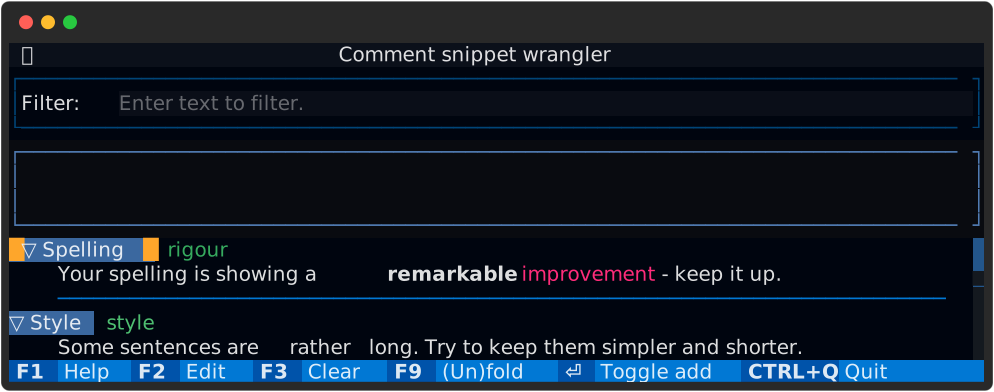
Figure 2 Group selection mode.
The selection is move using the up, down, left and right (arrow)
keys; and also for Vim users the 'k', 'j', 'h' and 'l' keys.
Keys left and right move between snippet selection mode and group
selection mode. The up and down keys change the selected snippet or group.
You can only leave group selection mode when the there is as least one snippet visible for the selected group (see Groups and folding).
When a snippet is selected the following keyboard operations are available:
'a':Add a new snippet below the selected snippet.
'd':Create a duplicate of the selected snippet and then edit it.
'e':Edit the contents of the selected snippet.
'm':Start moving the selected snippet to a different position.
When a group is selected the following keyboard operations are available:
'a':Add a new snippet at the start of the selected group.
'A':Add a new group after the selected group and open a dialogue to edit the name.
'd':Create a duplicate of the selected group and open a dialogue to edit the name.
'm':Start moving the selected group to a different position.
'f',Ins:Toggle the folded state of the group.
See Editing snippets, groups and keywords and Moving snippets and groups for more details.
Clipboard operations
Typically most interactions with Clippets involve combining snippets into the clipboard. You can add and remove snippets using the keyboard or the mouse.
- Keyboard
Use the
upanddownkeys to select each snippet you want and then press theenter(return) key or thespacebar. Pressenterorspaceagain to remove the snippet.- Mouse
Click on each snippet you want to add, using the left button. Click a second time to remove it.
Clicking with the mouse does not change the snippet/group selection.
By default, the order of the snippets in the clipboard is the same as the order
they appear in the snippet list not the order in which they are added.
Pressing use the F8 key toggles the behaviour so that snippets appear in
the order they were added.
Your computer’s clipboard is updated as soon as a snippet is added or removed.
If you wish to make some modifications to the clipboard content before pasting
it elsewhere then press F2. This will open the Clippets editor window or,
if configured, an external editor. The Clippets editor looks like this:
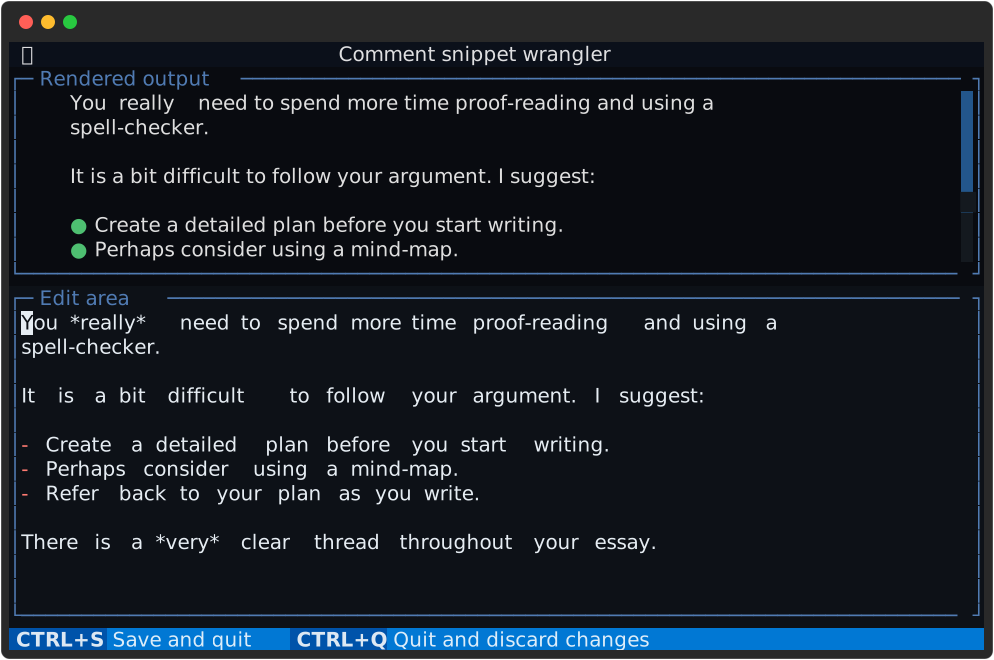
Figure 3 The built-in editor interface.
The lower part of the terminal is where editing takes place. The upper area is there to give a better idea of how the text will look when pasted into a word processing application.
As shown in the menu bar, use Control-S to save your changes and
Control-Q to discard them.
Warning
If you add or remove a snippet after editing the clipboard content, you
edits will be lost. The undo key Control-U will restore the clipboard
back to how it was immediately after your edits.
Currently is is not possible to edit the clipboard and then add/remove snippets while preserving your edits.