Groups and folding
Groups allow you to collect related snippets together into a tree hierarchy, parts of which can be folded so you can easily see a useful subset of your snippets. The figure below shows Clippets with a partially folded tree.
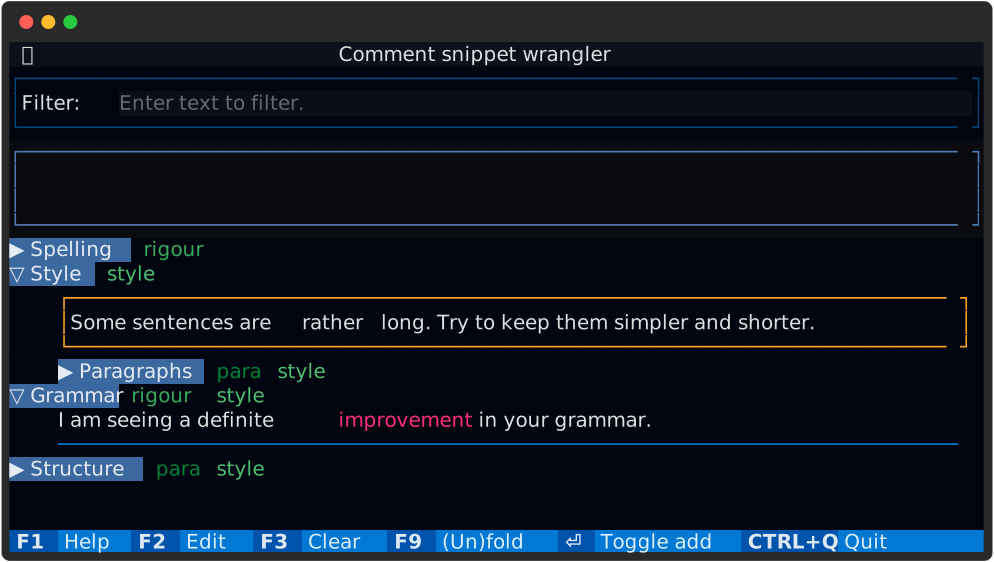
Figure 4 An example of folded groups.
Folded groups have start with a closed triangle (▶) symbol and unfolded
groups start with an open triangle (▽) symbol. The folded state of groups
may be toggled in a number of ways.
The F9 key.
This toggles between having all groups folded and all unfolded. If any group is not folded when this is pressed the all groups will become folded, as shown below.
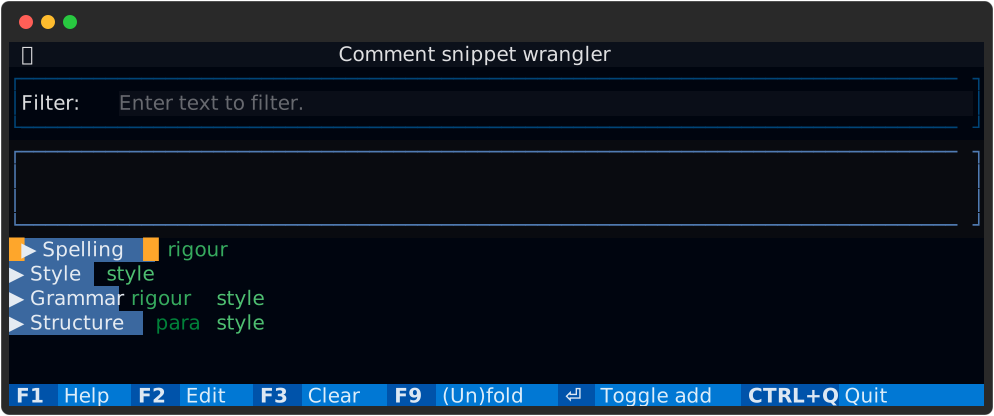
Figure 5 All groups folded.
If all groups are folded then F9 will unfold all groups, recursively. F9
is useful when you only want a few select folds to be open.
Left click on a group.
Left clicking on a group name simply toggles the folded state of the group.
Keyboard group selection.
Pressing the left key will change the keyboard selection from ‘snippet
selection mode’ to ‘group selection mode’, which looks like this:
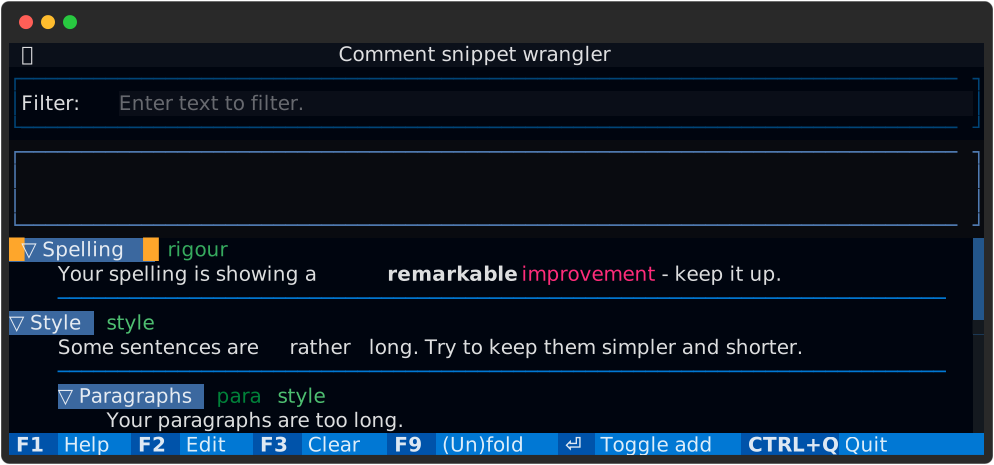
Figure 6 Group selection mode.
When in group mode, the up and down keys move between group labels and
pressing either f or the Ins key [1] will toggle the folded state
of the selected group.
The right key will move back to ‘snippet selection mode’ provided the
selected group is unfolded.
Tags
The tags listed after group labels (‘rigour’, ‘style’ and ‘para’ in these examples) allow multiple groups to be folded/unfolded at once. Simply click on one of the tag labels using the left mouse button. The figure below shows the effect of clicking on the ‘para’ tag.
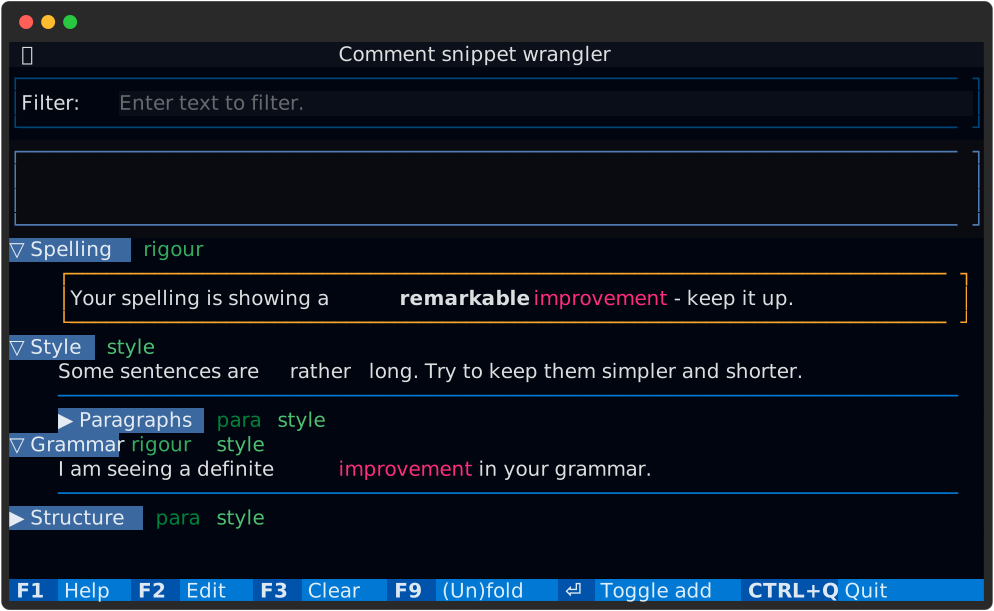
Figure 7 The effect of folding using the ‘para’ tag.
The F9 key in combination with group tags provides a mechanism for quickly
getting just a few open folds.