Backup files
Every time you make a change by:
Editing or adding snippet.
Renaming or adding a group.
Modifying a groups keywords.
Moving a snippet of group.
Clippets immediately write the change to the snippet file. There is no save menu or button, the snippet file is always kept up to date.
Clippets also creates up to 10 backup files to give you a way to undo recent
changes. Assuming your snippet file is called marking.snip, then the file
marking.snip.bak1 will contain the most recent backup and
marking.snip.bak10 will contain the oldest backup.
A future versions Clippets may include a mechanism to restore backups, but for now the only way to do this is by copying or renaming one of the backups over the main snippet file. You do not need to exit Clippets to do this. Clippets will detect that the snippet file’s time stamp has changed and prompt you to load in the restored file.
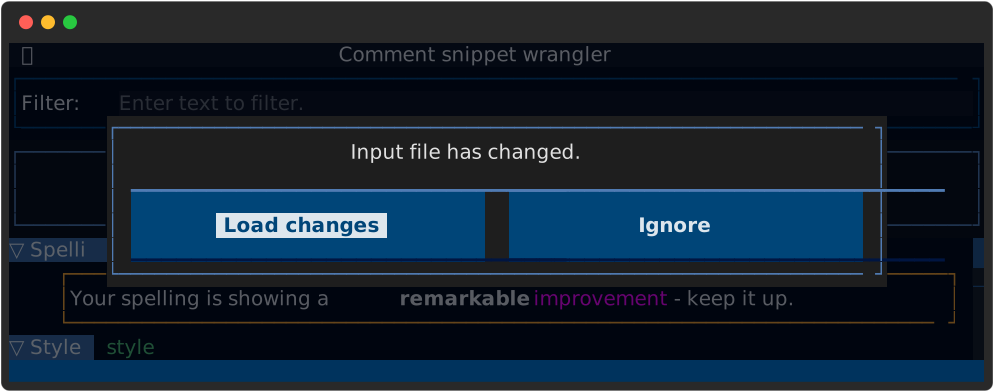
Figure 21 Detection of the snippet file being changed.
This file change detection mechanism also means that you can choose to edit you snippet file while Clippets is running and the load in the changes when prompted. A read of Clippets file format is recommended if you choose to do this.