Editing snippets, groups and keywords
General information
Clippets provides the means to add new groups and snippets or edit existing groups, snippet and keywords. Most of these operations can be performed using the mouse (via a context menu) or using simple, single key presses [1].
Context menus are opened by right clicking on a snippet, group. For example right clicking on a snippet bring up the following menu.
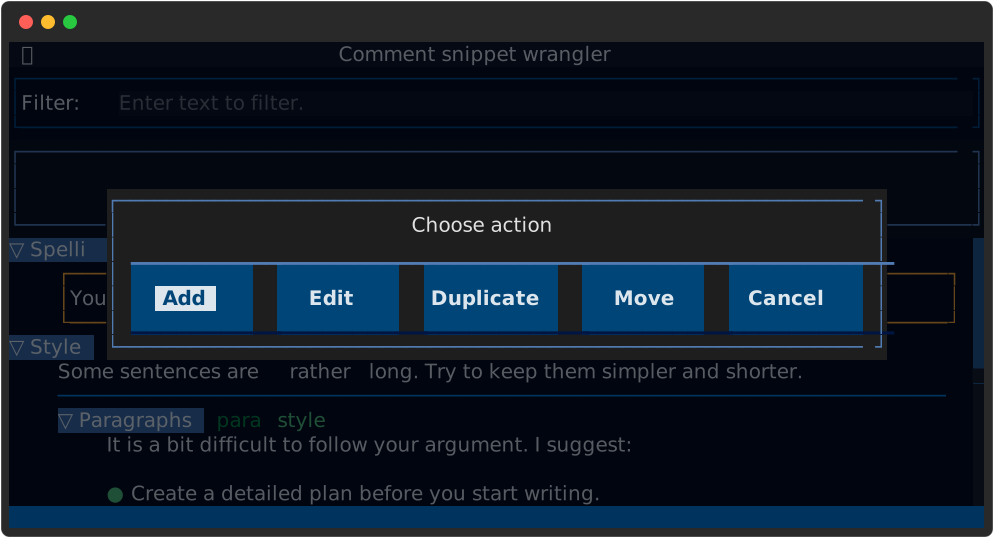
Figure 8 The snippet context menu.
You can click on one of the buttons or use the Tab key to highlight it and
then press Enter.
If you prefer to use the keyboard as much as possible then move the highlight
to the snippet you wand and press 'a' to add, 'e' to edit, 'd' to
duplicate or 'm' to start a move operation. (Move operations are covered in
Moving snippets and groups).
Clippets has its own built-in editor, which looks like this.
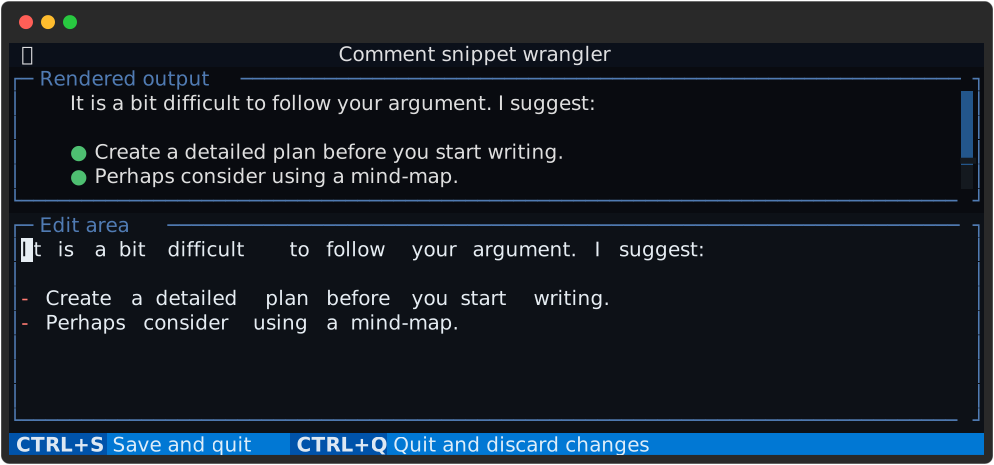
Figure 9 Editing a snippet.
If have an editor that you prefer to use then set the environment variable
CLIPPETS_EDITOR before you start Clippets. For example, on Windows you might
set it to 'notepad'. See Using and external editor for details and important
notes about how to configure external editing. The following sections assume
that the internal editor is in use.
Each time you make any edit, the changes are immediately saved to the snippets file, but a backup is made. See Backup files for details.
Editing snippets
You can edit a snippet using the context menu described above. The context menu provides 3 editing choices:
- Add:
Adds a new empty snippet below and opens it in the editor.
- Duplicate:
Duplicates the snippet, adds it below and opens it in the editor.
- Edit:
Opens the snippet in the editor.
The corresponding keyboard shortcuts are 'a', 'd' and 'e'. When
using the built-in editor you will see a window as shown above. This is split
into an upper (preview) pane and the lower (editing) pane. The preview updates
as you type.
You can also add new snippet at the start of a group by selecting ‘Add snippet’ from the group context menu.
Once you are satisfied with your changes, press Ctrl+S to save your changes
and exit the editor. To abandon your changes press Ctrl+Q instead.
Editing groups
You can edit a group using the group context menu, which is displayed when you right click on a group label.
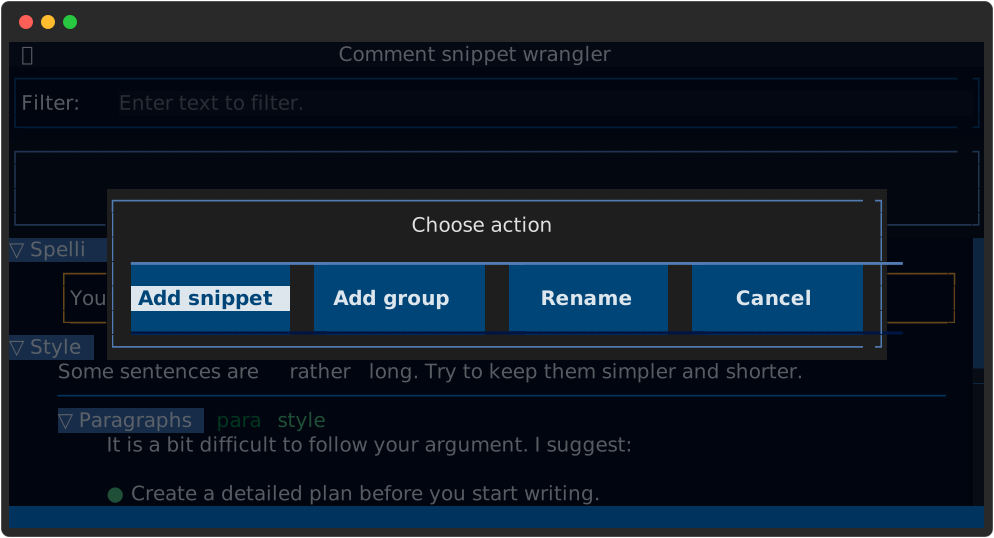
Figure 10 The group context menu.
The menu provides 2 group editing choices:
- Add group:
Adds a new group below and opens a dialogue to enter the new name.
- Rename:
Simply opens a dialogue to modify the group’s name.
The corresponding keyboard shortcuts are 'A' and 'r', with a group
label selected [2].
When you choose to rename or add a group, the following dialogue appears.
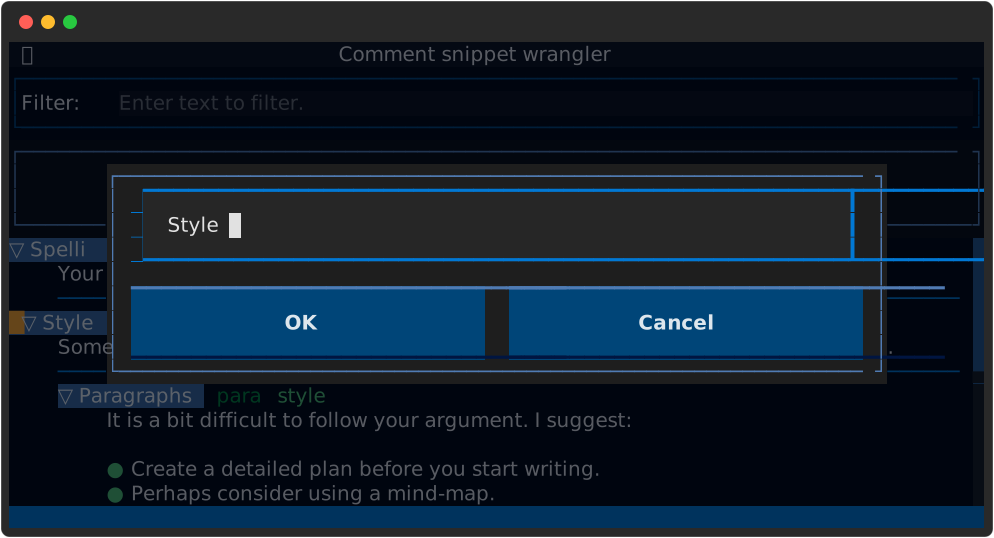
Figure 11 The group add/rename dialogue.
If the OK button becomes disabled while you are editing the name, then
the entered value is allowed. Reasons for this include:
The name is empty of consisted only of spaces.
The name conflicts with another group within the same sub-group.
Editing keywords
Currently the only way to edit keywords is to press the F7 key. This opens
the editor with the keywords for the currently selected group or the group
containing the currently selected snippet [3].
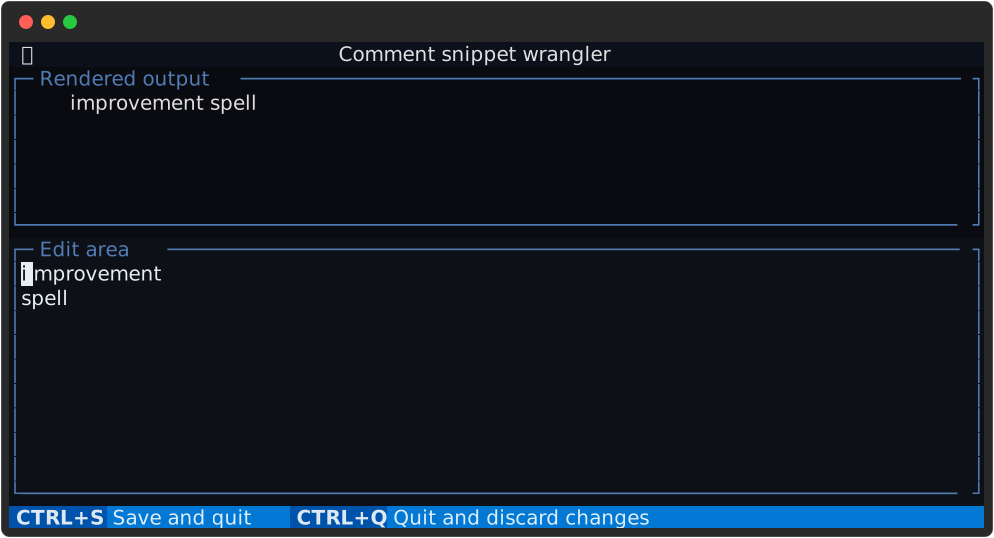
When the editor opens, the keywords are shown one-per line, lexicographically sorted. You do not need to adhere to this style when editing; just separate each keyword by newlines or spaces.
Editing the snippets file
If you are comfortable doing so, it can be more efficient to edit the snippet file directly. Read Clippets file format for the details of what goes into a snippet file.
If Clippets is running when you edit the file, it will detect when the file is updated and prompt you to load in the changes.
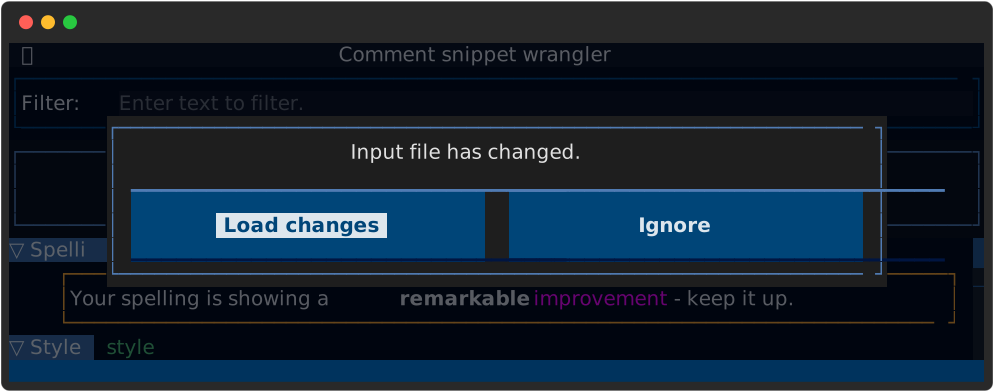
Figure 13 Detection of the snippet file being changed.