Finding snippets
In order for Clippets to be as useful as possible, you need to be able to find the snippet you want as quickly as possible. Clippets’ user interface is designed with this aim in mind [1]. The features, discussed elsewhere, that are intended to make finding snippets efficient are:
Hierarchical and foldable groups; see Groups and folding.
Marking related groups using tags; see Groups and folding.
This section covers the following additional features.
Keywords.
The search tool.
Keywords
Keywords are intended to make it easier to spot the snippet you want. Every group can have an associated set of keywords. See Editing snippets, groups and keywords for how set the keywords for a group. Each keywords is shown highlighted using a different colour, up to 10 colours; (for more than 10 keywords the colours start to get reused).
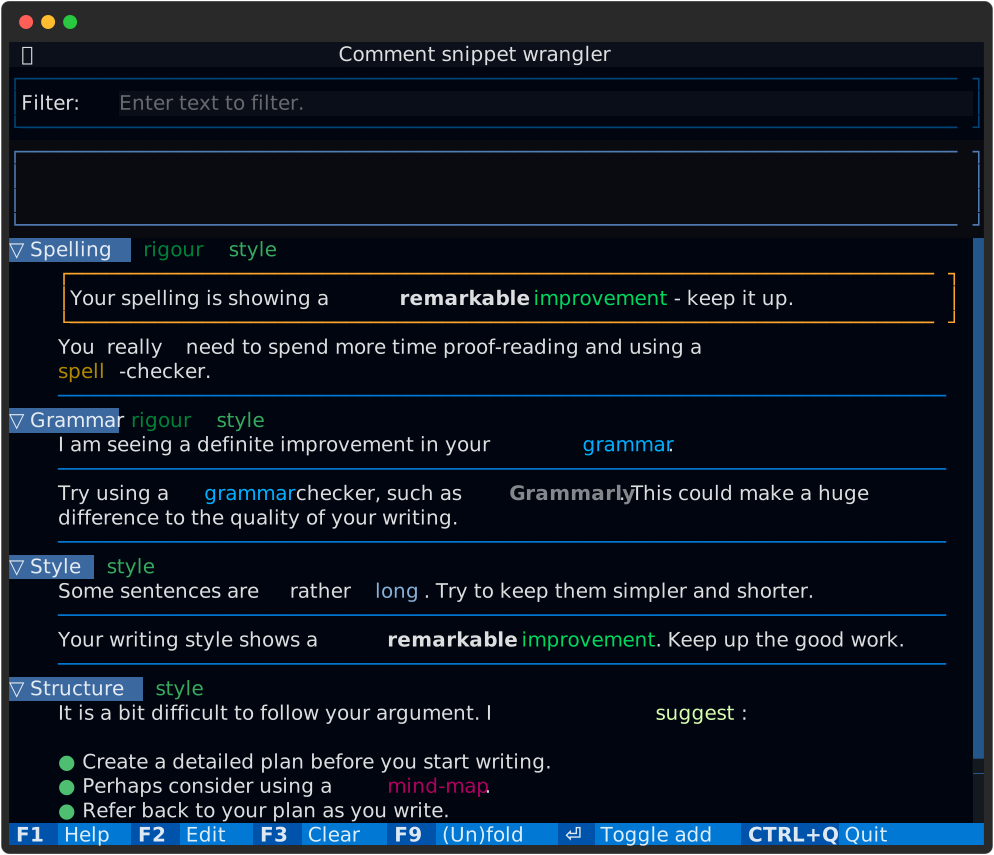
Figure 18 A number of highlighted keywords.
Search tool
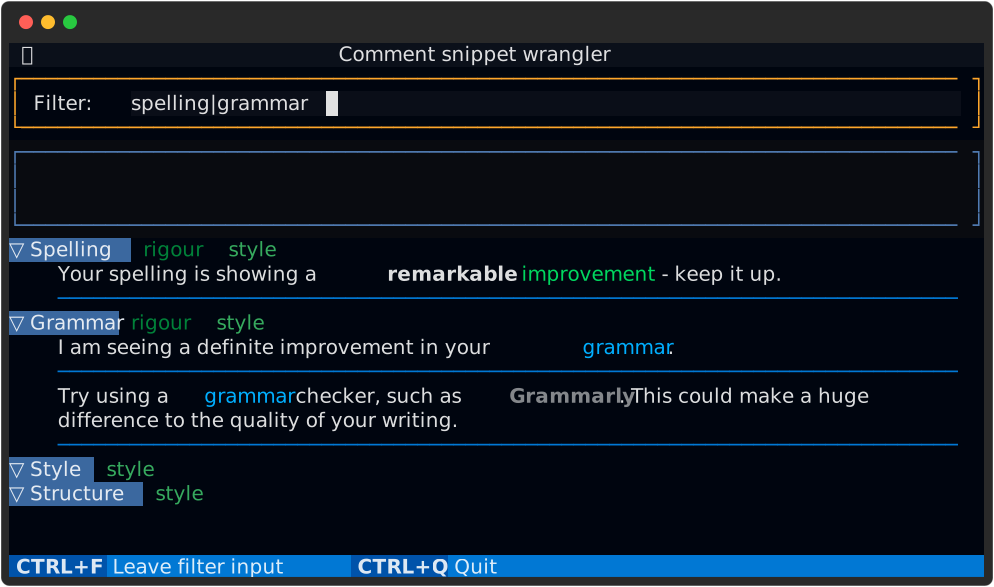
Figure 19 An example of searching for snippets.
At the top of the Clippets display is a search/filter box. You can press
control-f or click on the box to edit its contents. As you type into this
box the snippet tree is filtered so only show those snippets that contain the
search text you have entered. Groups containing no match are shown as empty,
but notice that they are not shown as folded unless that are actually folded.
The above figure shows the search box being uses to find all the snippets that contain either ‘spelling’ or ‘grammar’. This is possible because Clippets typically treats the search expression as a regular expression rather than a simple piece of text to match.
If you are familiar with regular expressions then there is a good chance that you either love them or hate them. If they are new to you then the side bar gives a very quick primer and how to avoid them [2].
If the text you type into the search box is not a valid regular expression then Clippets falls back to doing a simple text search.